
The quickest useful search starts with the information you already have. Use a product name to explore, an original product ID to identify a record, or a clear image to find visually similar items. Hubbuy Sheet provides a searchable catalogue and then sends you to the corresponding Hubbuy product page. This guide explains which search to choose, what its results mean and what to check before turning a saved link into an order.
Start with a name, a link or a photo
If you know the product category and model, start with a short name in the catalogue search. If you have an original source ID, enter the number. A supported product URL can also supply that ID. If you only have a screenshot, use the image-search tool and then inspect the closest candidates. These are different ways to find a record, so choose the one that uses your strongest information.
Searches cover the connected catalogue. An empty result does not mean that Hubbuy cannot purchase the product or that every seller has removed it. It means this search did not locate a matching record here. Keep a separate distinction between finding an item in this catalogue and confirming what the live purchasing page currently offers.
Build a short, specific text search
Begin with a recognisable model term or product type. A broad word such as shoes can return many unrelated records, while a long sentence copied from a video caption may contain terms absent from the product title. Try the model first, then add a colour or another distinctive detail. If a query returns nothing, remove optional words before assuming that the item is missing.
Use the category pages when you want to browse rather than identify a known item. Shoes, T-shirts, hoodies and accessories provide practical starting points. Compare the title with the image because a title alone can be incomplete. Sorting changes the order of the current results; it does not verify a seller, update an unavailable option or establish that the cheapest item matches your reference.
Find the original product ID
A product can have an internal catalogue number and a separate original source ID. The number in this website’s detail-page address is not automatically the number required by Hubbuy. Open the detail page and use the source ID shown there. Save it alongside the product name so that a later title change does not make your reference impossible to recognise.
For example, the supplied Hubbuy product link uses the path /product/2/7853208944. Here 7853208944 is the original product ID; the sharing parameters after the question mark describe the link rather than a different product. This example explains the address format. It does not promise that the listing remains available, that its current options match an old screenshot or that its price has stayed the same.
Check a saved product link before opening it
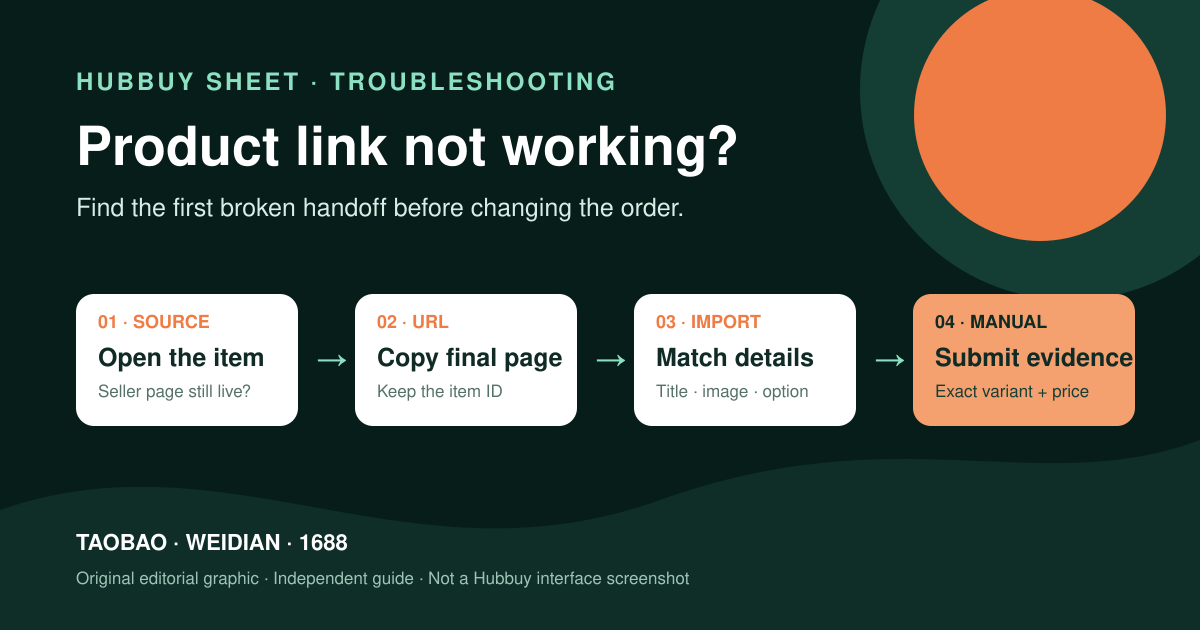
Paste a supported product link into search when you already have one. If the result is unexpected, compare the ID extracted from the link with the source ID on the result page. A store homepage, category page or social-media redirect may not identify one product at all. In that case, open the original reference and locate the specific item before searching again.
The catalogue’s purchase button opens the corresponding product on Hubbuy. Once there, check the current title, seller information, selected size, colour and quantity. Keep the final option text rather than relying only on a familiar thumbnail. A page can reuse an image across several options whose materials, measurements or included parts differ.
Use image search when a name is missing
Crop the reference to one product and keep its outline visible. For shoes, retain the sole and side panels; for a bag, include the handles and closure. Search a second angle if the first produces broad matches. Compare several candidates instead of treating the first result as an exact identification. Similar colours or logos can hide important differences in construction.
The image tool compares your selected picture locally with the catalogue image index. It suggests visually similar catalogue records, not an authenticity assessment or a complete search of all sellers. Once a candidate provides a useful name or source ID, switch to text or ID search to trace that particular record. Save the reference image separately from the seller’s current pictures.
Treat a seller or store name as a lead
A store name can help you recognise a source, but the catalogue is not a complete seller directory. A search may find product titles containing that name and miss other products from the same store. To evaluate a specific item, follow its source record and inspect the seller information available on the live page. Do not assume all items sharing a name come from the same seller.
Look for evidence tied to the exact listing and selected option. Recent, relevant feedback may help you identify recurring problems, but it cannot guarantee the next order. If an essential detail is missing, ask a specific question before paying. A clear question about sleeve length or included accessories is easier to resolve than a general request to confirm that the item is good.
Compare price and options on equal terms
A catalogue price is a discovery reference, not a final delivered total. Check the currency, chosen variant, quantity and current amount on Hubbuy. Keep product cost separate from any domestic delivery, international parcel charge and destination costs that apply to your order. Avoid ranking two links as cheaper or more expensive until you know they describe comparable items and quantities.
For clothing and shoes, compare actual measurements with a familiar item that fits. For accessories, record dimensions, closures and included parts. A size letter or product photo is not a substitute for a matching measurement. Mark unknown fields explicitly so that the lowest visible price does not conceal a missing specification you need to make the decision.
Connect the listing with warehouse QC
The pictures used to discover an item are not automatically inspection photos of your order. After a purchase reaches the warehouse, compare the received item with your saved source ID, selected option and reference images. Focus on visible features and useful measurements. Neither a catalogue gallery nor warehouse photographs alone can prove material composition, authenticity or future durability.
When a detail is unclear, request the view that could change your decision. For a shoe this might be the size label and a clearly framed measurement. For a chain it might be the closure and length. Keep the order record and any follow-up request together, and check current handling or return options in the live order interface before deciding what to do next.
Troubleshoot missing or mismatched results
First remove extra query words, try the original ID and check the appropriate category. If you began with a redirect, use the final product reference instead. If an image search fails, try a supported file format, a clearer crop or another view. A temporary index or image failure is different from a product being absent, so keep the error message in mind when choosing the next attempt.
If a catalogue card leads to a changed or unavailable listing, do not treat a similar replacement as the same item. Record the original ID and what changed, then start a new comparison. Recheck the variant on the destination before paying, even if you have successfully ordered from a saved link before. Repeat purchases still need current information.
Keep a small, traceable shortlist
Save the source ID, catalogue URL, intended variant, date checked and one unresolved question for each candidate. Add a measurement or reference image only when it helps compare the item later. Three well-documented candidates are usually easier to evaluate than dozens of anonymous links. Remove entries that no longer match your requirements instead of keeping them because they once looked promising.
Continue with the catalogue for name and ID searches, the image tool for visual discovery, or the shoe guide for a category-specific checklist. The goal is a product you can identify consistently from search result to live listing and warehouse inspection. That record makes each next step clearer without pretending that a search result can answer every purchasing question.