
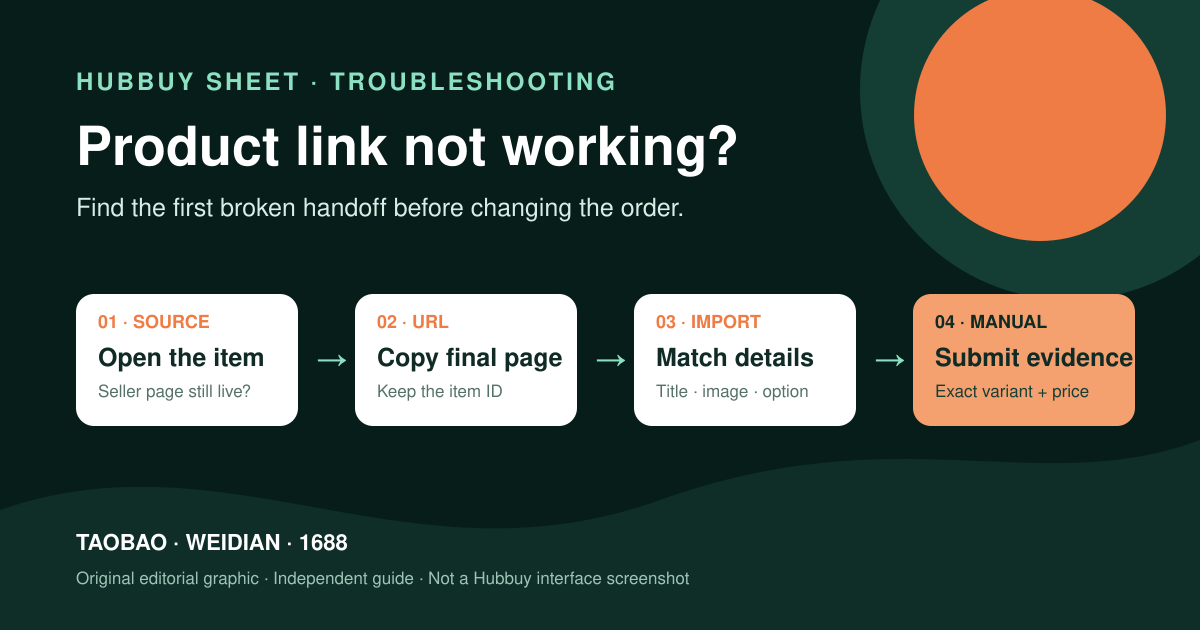
When a Hubbuy link does not work, the error may lie in the original product page, shared URL, marketplace access, or information import. Repeating the same attempt does not identify which layer failed. The most useful approach is to recover the item's identity, check the source page, and compare the result shown at the next stage. This helps avoid replacing one item with another just because the photo looks similar.
Identify the screen where the process stopped
Record the URL used and the message displayed. A removed marketplace page is different from a search field that does not recognize the link. A login screen, an empty result, a temporary loading failure, and the wrong item opening are also different situations. Record the observed state without immediately attributing the cause to the entire platform.
HubbuyCN's public page offers search by product name or link and an entry for manual purchasing. This confirms purchasing paths available in the navigation, but it does not guarantee that every shared URL can be imported. Hubbuy Sheet is an independent guide: its catalogue buttons lead to the linked catalogue, while an order must be investigated on the platform where the purchase was made.
Identify the product before changing its URL
Keep the marketplace name, store, item identifier, and intended model, color, and size. The title alone does not reliably identify goods. Sellers may reuse photos and write similar names. If you started from a spreadsheet, find the original row and the URL recorded there. An old screenshot helps reconstruct your intent, but it does not prove current stock.
Open the individual product page, not just the store's storefront or results list. Check that the identifier remains the same after any redirects. If the listing has been replaced, preserve that fact. A new URL may represent another item, version, or seller. Review the alternative as a new option before reusing data from a previous purchase.
Distinguish a login requirement from a removed product
Some marketplaces may display access screens, regional restrictions, or checks while browsing. This does not prove the product no longer exists. If you can open the listing in your own session, compare the visible information with the URL sent to the importer. The destination system may not receive the same data displayed in your signed-in browser.
Use the platform's normal processes and do not give passwords or access codes to third parties to fix a link. Avoid installing unfamiliar extensions merely because a page promises to recover any listing. If access remains limited, record the situation and ask for the officially available path for that order. A viewing limitation should remain explicit during the selection process.
Copy the individual product URL carefully
A shared message may contain promotional text, an app code, a short link, or a campaign URL. Check that you copied a navigable URL and that it actually leads to the product page. Open the destination, compare the item's identity, and only then use the displayed URL. Do not automatically turn any received text into a purchase link.
Do not remove all URL parameters indiscriminately either. Some may contain the item identifier or selected option. First preserve a complete copy and change only what you can explain. If the cleaned URL opens another variant or a general search, it has lost important information. The goal is to keep the product identifiable, not to create the shortest possible URL.
Check the import result field by field
When the system displays a preview, compare the main photo, title, store, price, model, color, size, and quantity. A populated result does not necessarily mean all these fields were recognized. In listings with several versions, the starting price may apply to a different option. Select the intended variant and record the final combination you are authorizing for purchase.
If the image looks correct but the option name does not match the original record, pause the comparison and clarify the difference. The same photo may present several colors or accessories. Keep a screenshot of the listing and another of the imported summary to show exactly where they differ. This is more useful than merely reporting that the site “does not work.”
Investigate price differences without assuming a cause
The item price, domestic shipping, displayed currency, and purchasing-stage services may appear separately. Record the amounts and option on each screen before comparing. A difference may relate to the variant, quantity, or an updated listing, but none of these possibilities should be treated as confirmed without the corresponding information.
For a fictional example, imagine a listing with a price range because it includes two versions. The lowest number in the range does not automatically represent the chosen version. Compare the option selected in the listing with the purchase summary, and identify the additional charges actually described. Do not treat the spreadsheet's starting price as a final delivered quote for Brazil.
Use manual entry with a complete description
When the current interface offers manual purchasing and the product is eligible, collect the original URL, store, item, variant, quantity, displayed price, and images needed to explain the selection. Fields and conditions may change, so check the form available at that time. Manual entry is a way to communicate information, not a guarantee of stock or purchase acceptance.
Write down any detail that could change the result: version, size, color, finish, or included accessories. If the listing lacks information, record the question for clarification before authorization. Do not submit instructions incompatible with the product or use manual purchasing to ignore an explicit restriction. Keep the final summary for comparison on receipt.
Treat an alternative as a new selection
If the source confirms unavailability, save the reason and date. An image or name search may help find similar candidates, but it does not establish equivalence in seller, material, version, or quality. Open each candidate and compare the relevant characteristics. Visual similarity is a starting point, not permission to replace the item without review.
If a paid order already exists, confirm its status before buying again. A loading error does not demonstrate cancellation, and a duplicate attempt may create two purchases. Use the platform's history and messages to identify any pending action, proposed replacement, or refund review. The next decision should consider the commitment already recorded.
Finish the check by connecting the order and QC
After resolving the link, save the page and variant actually purchased. When the product reaches the warehouse, use that record to check identity, quantity, and visible details in QC. If there is a discrepancy, link the photos to the correct order before requesting clarification. A well-organized history helps distinguish an import error from a problem that occurred later during purchasing.
For new searches, use the products-and-stores guide to build a short list of options. For failing links, keep a fixed sequence: source, access, URL, import, variant, and order status. This method reduces attempts without diagnosis and keeps the decision based on the actual item. It also avoids treating a listing's availability or an integration's operation as permanent.
HubbuyCN's public purchasing, inspection, consolidation, and calculator workflows were consulted on 1 October 2026. Measurement and calculation examples are illustrative. Order rules, services, amounts, and timelines must be confirmed in the active interface; this independent guide does not represent the platform's customer service.
Continue researching your product
Find a catalogue reference and confirm the listing, variant, and price on the current page.